> For the complete documentation index, see [llms.txt](https://trybee-try-before-you-buy.gitbook.io/trybee-try-before-you-buy-docs/llms.txt). Markdown versions of documentation pages are available by appending `.md` to page URLs; this page is available as [Markdown](https://trybee-try-before-you-buy.gitbook.io/trybee-try-before-you-buy-docs/trybee-try-before-you-buy/how-to-customize-the-try-before-you-buy-button-in-trybee.md).
# How to customize the Try Before You Buy button in TryBee?
### Button Customization 🎨
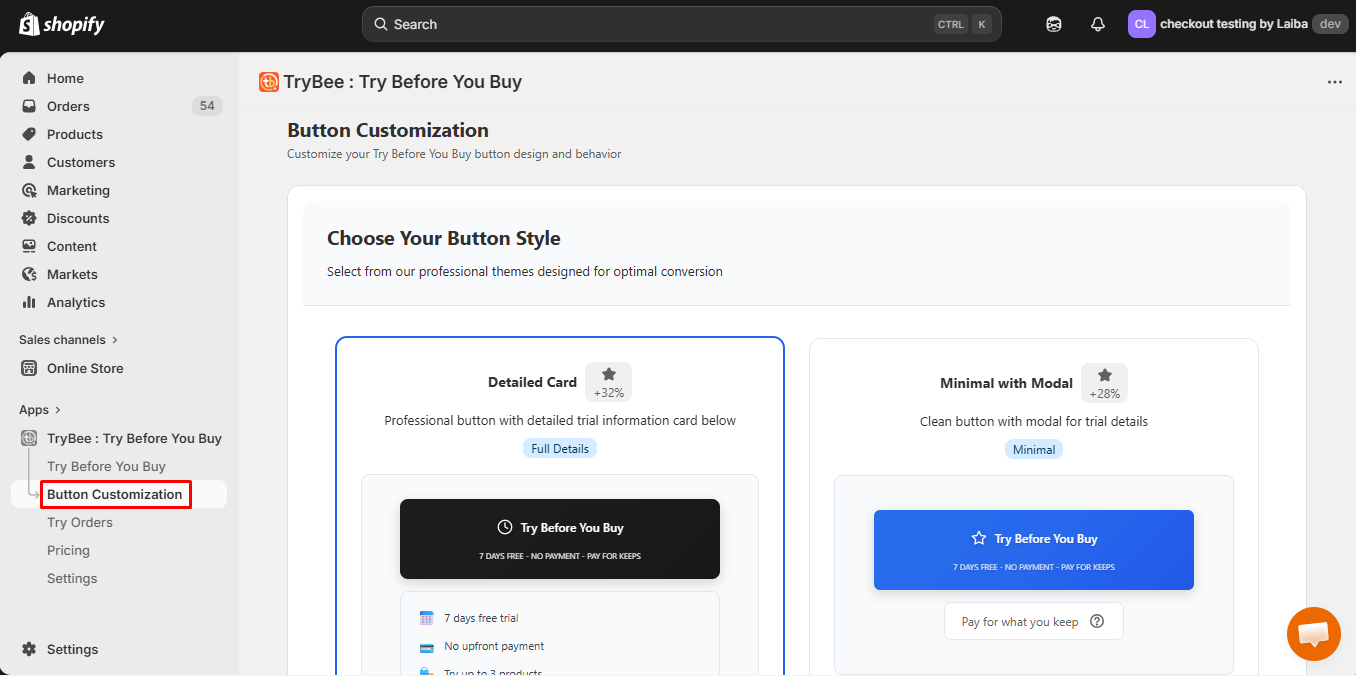
The **Button Customization** section allows you to **tailor** the **Try Before You Buy button’s design** and functionality so it aligns seamlessly with your **store’s branding** and user experience.
To begin, navigate to the **Button Customization** tab from the **TryBee dashboard**. This will open the **customization panel** where you can modify both **appearance** and **behavior** settings.
#### Choose Your Button Style
Select from professionally designed **themes** optimized for **clarity** and **conversion**. Each theme offers a **distinct layout** and **visual hierarchy**, allowing you to choose one that complements your **store’s aesthetic**.
Choose the theme that best reflects your brand identity and product presentation.
#### Appearance Settings – Widget Customizer
After selecting your preferred **theme**, the **Customizer panel** will open automatically. In the Appearance tab, you can **configure** how the **Try Before You Buy widget** will look on your store. These settings allow you to control the **button text, icon visibility,** and additional **trial information** displayed to customers.
**Button Text**
In the **Button Text field,** enter the label that will appear on the widget button.\
For example: Try Before You Buy\
This text is shown directly on the **button** and should clearly describe the offer to your **customers.**
**Show Icon**
Enable the **Show Icon** option if you want an icon to appear next to the button text.\
Displaying an icon helps customers quickly **understand** that the button relates to a **trial** or **time-based offer.**
**Icon Type**
If the icon option is **enabled**, you can select the icon style from the **Icon Type dropdown.**\
Choose the icon that **best represents** your offer, such as a clock for trial time or a package for **product testing.**
#### Theme-Specific Settings
These options control how **trial details** are displayed inside the widget. You can enable or disable them depending on how much information you want to show to customers.
**Show Inline Trial Points**
When this option is **enabled**, key trial details will be displayed directly **inside the button.**
This may include information such as: **Trial duration, Payment conditions, Product limits, Return policy**
Use this option if you want customers to immediately see the main offer without needing extra clicks.
**Show Trial Points Card**
When **enabled**, a **detailed information card** will appear below the button.\
This card provides a clearer **breakdown** of the **trial offer**, **such as:** 7 days free trial, No upfront payment, Try multiple products, Return within allowed days
This option is recommended if you want to give customers more **transparency** about the Try Before You Buy offer.
#### Colors & Gradients
The **Colors & Gradients** tab allows you to customize the **visual style** of the widget button to match your **store theme**. You can use either **solid colors or gradient backgrounds**, depending on your design preference.
**Enable Gradient Background**
Enable the **Gradient Background** option if you want to use a gradient instead of a **single solid color.**\
When **enabled**, you can select from the TryBee**’s built-in gradient** presets or customize the gradient colors according to your branding.
Using gradients is **recommended** if you want the widget to appear more **modern** and visually engaging.
**Solid Colors**
If the gradient option is **disabled**, you can manually select **solid colors** for the widget.
Available options include:
* **Background Color:** Controls the main color of the button
* **Hover Color:** Changes the button color when the customer moves the cursor over it
* **Text Color:** Sets the color of the button text for better readability
Make sure to choose colors that provide **good contrast** so the button remains clearly visible to customers.
#### Typography Settings
The Typography tab allows you to control the **text styling** of the **widget button.** These settings help you match the **widget font** with your store’s typography for a consistent look.
**Font Size**
Adjust the **Font Size slider** to increase or decrease the size of the **button text.**\
Use a larger font size if you want the button to be more noticeable.
**Font Weight**
The Font Weight option controls **how** **bold** the **text appears.**\
For example: **Normal, Medium, Semi Bold, Bold**
A **heavier font weight** is recommended for better visibility on **call-to-action buttons.**
**Text Transform**
The Text Transform setting changes the **letter style** of the button text.
Available options may include:
* **None:** Keeps text as written
* **Uppercase:** Converts all letters to capital
* **Lowercase:** Converts all letters to small letters
* **Capitalize:** Capitalizes the first letter of each word
This option helps you **maintain consistency** with your store’s design style.
**Letter Spacing**
Use Letter Spacing to control the **distance between characters.**\
Increasing spacing can make the text **easier to read**, while smaller spacing keeps the text compact.
### Effects Settings:
The Effects tab allows you to refine the **visual presentation** and **interactive behavior** of your button. These settings give you full control over **styling details** and **animation enhancements**, enabling you to align the button design with your **brand identity** and **user experience strategy.**
Below is a detailed overview of the available options:
#### 1. Visual Styling Controls
These settings determine the structural appearance and spacing of the button:
* **Border Radius (8px)**\
Adjusts the **roundness** of the **button’s corners.** A higher value creates softer, more rounded edges, while a lower value produces a sharper, more structured look.
* **Border Width (0px)**\
Defines the **thickness** of the **button’s border.** Setting this to 0px removes the border entirely for a cleaner, minimal design.
* **Vertical Padding (16px)**\
Controls the **internal spacing** at the **top and bottom** of the **button.** Increasing this value enhances touch-friendliness and improves visual balance.
* **Horizontal Padding (24px)**\
Adjusts the **spacing** on the **left and right** sides of the **button** **text**. This ensures proper alignment and contributes to a well-proportioned layout.
* **Box Shadow Style (None)**\
Determines whether the button displays a **shadow effect.** When set to **“None,”** the button maintains a **flat appearance.** Applying a shadow can add depth and subtle emphasis.
#### 2. Animation Effects
To further enhance engagement, optional animation effects can be enabled:
* **Enable Pulse Effect**\
Adds a **gentle pulsing animation** to the button. This effect subtly draws attention without being intrusive, making it ideal for highlighting important actions such as **“Try Before You Buy.”**
* **Enable Shimmer Effect**\
Creates a **smooth shimmering animation** that moves across the **button surface**. This visually dynamic effect is particularly effective for **increasing click-through rates** and **emphasizing promotional actions.**
### Behavior Tab – Configuration & Control Settings
The **Behavior tab** enables you to define how your “Try Before You Buy” **experience functions** across the storefront. These settings allow you to control redirection logic, button visibility, trial information display, and advanced styling, ensuring both **operational clarity** and a **seamless customer journey.**
Below is a structured overview of the available options:
### 1. Redirect Settings
These options determine **what happens** immediately after a customer **adds a product to the cart** through the Try Before You Buy experience.
#### After Adding to Cart
You can choose one of the following actions:
* **Stay on Current Page (Selected)**\
Customers remain on the **product page** after adding the item. This option supports continued browsing and **reduces interruption** in the shopping flow.
* **Go to Cart Page**\
Automatically redirects customers to the **cart page,** allowing them to review selected items.
* **Go to Checkout**\
Directs customers **straight to checkout,** streamlining the purchase process and minimizing friction.
#### Button Visibility Controls
* **Hide Standard Add to Cart Buttons**\
Hides the default **“Add to Cart”** button when the **Try Before You Buy** feature is active, preventing confusion between **purchasing** and **trial-based actions.**
* **Hide Express Checkout Buttons**\
**Removes** accelerated checkout options such as **“Buy It Now,”** PayPal, Apple Pay, and similar **quick-payment** buttons to maintain consistency with the trial flow.
### 2. Trial Points Customization
This section controls what information is displayed within the **trial information card** shown to customers.
#### Display Controls
* **Show Trial Period (Enabled)**\
Displays the trial duration based on the assigned plan configuration.
* **Show No Payment (Enabled)**\
Highlights that no upfront payment is required.
* **Custom Text (Optional):**\
“No upfront payment” You may customize this message to better align with your brand voice. If left blank, the system default translation will be used.
* **Show Max Products (Enabled)**\
Displays the maximum number of products allowed under the trial plan.
* **Show Return Period (Enabled)**\
Displays the return window duration as defined within the selected plan.
### 3. Trial Points Card Styling
This section allows you to visually align the **trial information card** with your brand identity.
#### Color Controls
* **Background Color:** Defines the card’s background.
* **Text Color:** Sets the typography color.
* **Border Color:** Controls the card outline color.
#### Layout & Typography
* **Border Radius (8px)**\
Adjusts the roundness of the card corners for a softer or sharper design.
* **Font Size (14px)**\
Controls the readability and visual hierarchy of the card content.
* **Padding (16px)**\
Defines internal spacing for improved content clarity.
* **Top Margin (12px)**\
Adjusts the spacing between the trial card and surrounding elements.
### 4. Advanced Settings
#### Custom CSS (Advanced Users Only)
This section allows developers to apply **custom styling** for deeper design control.
Example structure:
.try-with-mady-button { /\* Add your custom styles here \*/ font-family: 'Arial', sans-serif; }
**Custom CSS** enables complete flexibility in typography, spacing, hover effects, and additional design refinements beyond the standard configuration options.
Once you have finalized all **customization settings,** click **Save** to apply and publish your changes.
\
If you **need assistance**, you can contact our **support team** directly through the **in-app chat** within the dashboard or [**schedule a call**](https://calendly.com/talk-to-specialist/30min) with one of our **experts** for **personalized guidance.**